Membership CTA
The label on guest membership buttons. It does not change Portal form copy. Signed-in visitors see their account link.
Editable text
Default: Join the journey
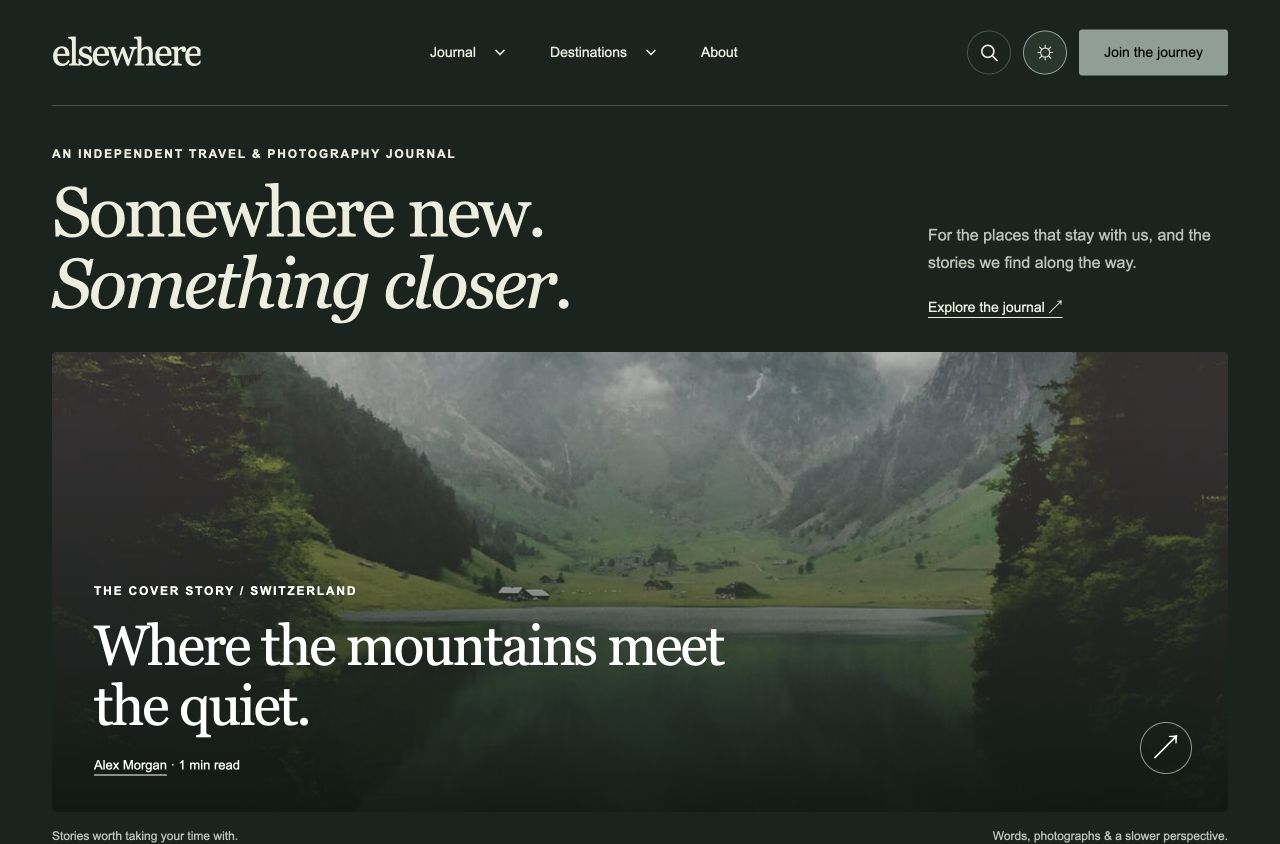
AN INDEPENDENT TRAVEL & PHOTOGRAPHY JOURNAL
Set up Elsewhere, shape your journal, and publish your first journey. Everything you need, from the theme ZIP to the smallest finishing detail.
BEFORE THE FIRST CHAPTER
Elsewhere is a Ghost theme for travel journals, visual essays and thoughtful field notes. You manage stories, images, members and site settings in Ghost Admin; no theme-code editing is needed for the controls documented here.
This guide matches Elsewhere 0.5.20. Each purchased license covers one production website, with 12 months of released updates and email support and a 14-day refund promise. Read the complete terms linked below.
elsewhere-0.5.20.zip, plus the included routes.yaml extracted when you reach the routes step.The theme ZIP contains templates, assets and setup files. It does not contain the demo database, sample members, demo photographs, server credentials or SMTP configuration. The complete customer product also includes a separate optional demo import with licensed photos; see Import demo content. Admin labels can vary slightly between Ghost versions.
01 / GET SET UP
In Ghost Admin, open Settings → Design & branding. Choose Customize, then Change theme.
Choose Upload theme and select elsewhere-0.5.20.zip. Upload the ZIP itself, not its extracted parent folder or the full development workspace.
Wait for validation to finish, then activate the theme. Open your site's public homepage in a new tab. Existing content is used immediately; missing editorial content gets an empty state or a hidden section.
Activation does not create your pages or menu. Import the optional demo first, or create your own pages. Follow the pages and routes setup before adding navigation links to those archives.
Back up your content, current theme and routes first. Keep existing post URLs wherever possible. A theme update and a routes change are separate operations.
OPTIONAL / SAMPLE PUBLICATION
The complete product includes demo-data/elsewhere-demo-0.5.20.zip: 14 English stories, five pages, seven supplied tags and 25 individually credited photographs. It is an optional native Ghost content import, separate from the installable theme ZIP.
Back up an existing publication first. The sample stories and pages are published immediately. Repeated imports can duplicate content or suffix URLs. The import does not replace existing posts, staff, members, navigation, Brand settings, theme options, payment connections or SMTP. It creates no accounts or subscriptions and sends no subscriber newsletter; Ghost may email an import report to the site owner.
Extract the complete product and upload only theme/elsewhere-0.5.20.zip as your theme. Keep the separate demo ZIP intact.
In Ghost Admin, go to Settings → Advanced → Migration tools → Universal import. Some versions label this area Import/Export. Select demo-data/elsewhere-demo-0.5.20.zip and allow the background import to complete. Do not upload it through Change theme. Check Posts, Pages and Tags after processing; an “Import in progress” notice alone does not confirm completion.
Ghost retains existing content. A fresh Ghost site already contains an About page, so the imported About page may become about-2. If you do not need the starter page, change its slug to about-this-site and unpublish it, then assign about to the imported page using the About template. You may also unpublish the starter “Coming soon” post. On an existing site, review links before changing any URL; do not overwrite an established page blindly.
Follow Pages & routes to upload routes/routes.yaml, merging existing routing where needed. Use the two-level menu instructions for Primary Navigation. Add Photo credits → /photo-credits/ in Secondary Navigation before displaying the demo publicly.
Choose your own title, description, logo, fonts, palette and theme options. Imported stories belong to your site's existing owner; no fictional staff profile is created. Set the author's name, bio and portrait in Ghost Staff. Membership, real email delivery and paid billing remain separate site setup tasks.
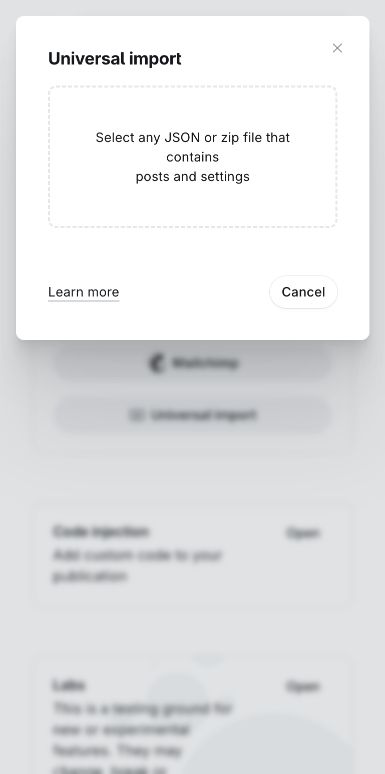
elsewhere-demo-0.5.20.zip. Wait for processing, then verify the imported content.| Content | Details |
|---|---|
| 14 stories | Public journeys, two photo essays, five field guides, one members-only and one paid sample. One story deliberately has no cover image. |
| 5 pages | Destinations, Photo essays, Field guides, About and Photo credits. Templates are assigned in the import; slugs still need a collision check. |
| 7 tags | Japan, Italy, Portugal, Switzerland, #photo-essay, #field-guide, and #elsewhere-demo. Ghost may add an internal import tag of its own. |
| 25 photographs | Thirteen distinct story covers, four destination covers, one About cover and seven essay photographs. No remote demo server is required after import. |
Original demo prose is dedicated under CC0. The photographs retain their individual CC BY, CC BY-SA or CC0 licenses; they are separate from your commercial theme license. Read all photo credits and the demo reuse terms. Keep source, author, license and modification notices, including ShareAlike conditions where applicable. No photographer endorsement is implied. Open copyright licenses do not necessarily clear privacy, publicity or trademark rights for every intended use.
The import includes a published /photo-credits/ page and captions. Keep a visible footer link while demo photos remain, including destination and About images. If you replace the photographs, review all remaining uses before removing credits. Sample copy is illustrative and is not verified travel advice.
#elsewhere-demo tag to identify them.For cleanup, review content marked #elsewhere-demo and its actual slugs before changing or deleting it. This marker is not an automatic rollback. Do not delete existing content or media solely because it shares a country tag.
02 / MAKE IT YOURS
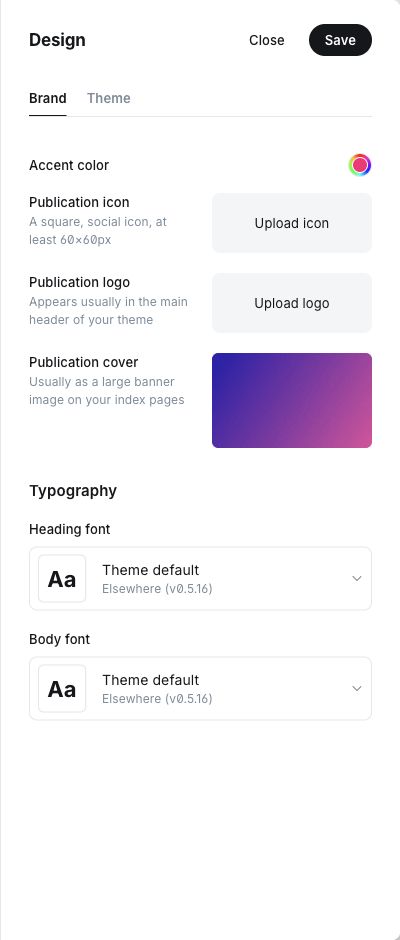
Open Design & branding → Customize → Brand. Set the publication's logo, accent colour, heading font and body font. Keep a readable logo for both colour schemes; check its appearance on a narrow screen as well as desktop. The theme contains the logo within its header slot without stretching it.
Ghost's heading/body fonts are also carried into the theme's styling of native Search, Portal and Comments, with system fallbacks. A font must support the characters used in your content. Brand accent is separate from the four theme palettes; check links and buttons after changing either.
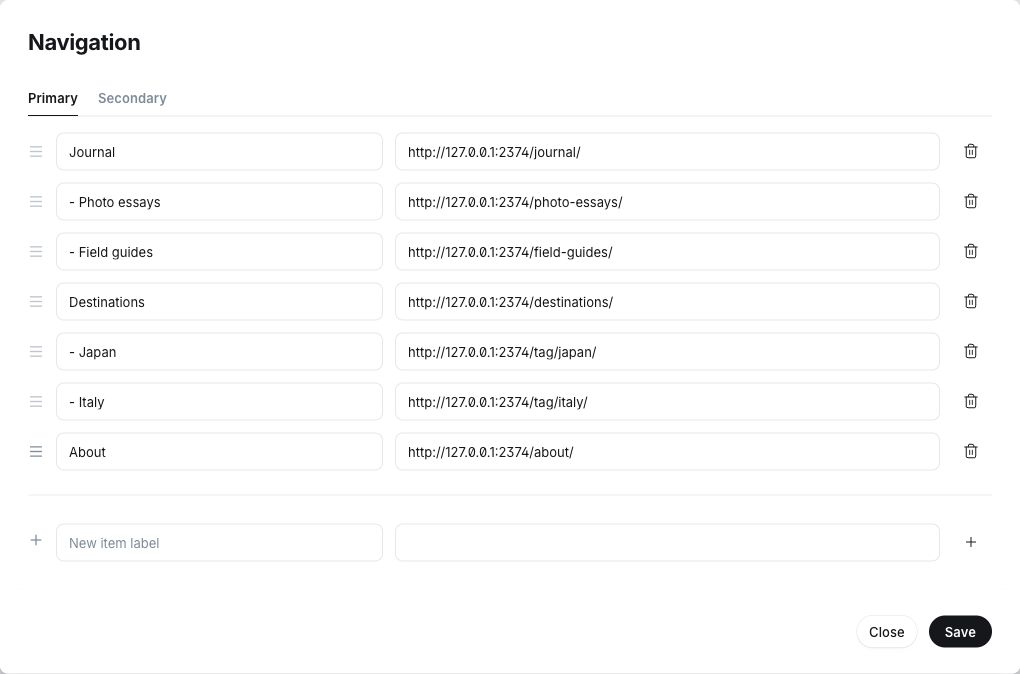
Open Settings → Navigation (or search Settings for Navigation). Add your labels and destinations, then save. Use your own site address when Ghost asks for a complete URL.
| Label | Path |
|---|---|
| Journal | /journal/ |
| Destinations | /destinations/ |
| Photo essays | /photo-essays/ |
| Field guides | /field-guides/ |
| About | /about/ |
Primary navigation appears in the header and the mobile menu. Secondary navigation appears in the footer. Keep labels short enough to scan. The header already provides a membership button, so an extra signup menu item is usually unnecessary.
To link directly to native Portal, use /#/portal/signup for signup, /#/portal/signin for sign-in, or /#/portal/account for a member's account.
Ghost stores Navigation as a flat list. Elsewhere turns a row whose Label starts with a single hyphen followed by a space into a child of the preceding top-level link. This works in Primary navigation only; the footer stays flat.
- , for example - Japan. The URL is a normal URL without a prefix.| Label entered in Ghost | Destination path |
|---|---|
Journal | /journal/ |
- Photo essays | /photo-essays/ |
- Field guides | /field-guides/ |
Destinations | /destinations/ |
- Japan | /tag/japan/ |
- Italy | /tag/italy/ |
About | /about/ |
Desktop: the parent remains a clickable link. Hover over its group with a mouse, or use its separate arrow to open the child links. Enter/Space toggles the arrow; Tab follows ordinary links. Arrow Down/Up opens the list and moves between children. Escape closes that submenu and returns focus to its arrow. Clicking outside or moving keyboard focus away closes the desktop disclosure.
Mobile and smaller screens: open the header menu first, then use each arrow to open or close its group independently. Several groups can remain open, and a long menu scrolls inside the panel. Escape closes the current submenu first; another Escape from a closed group closes the overall menu and returns focus to the header button. Following a link or clicking outside closes the menu. If you open Portal from the menu membership link, closing Portal returns keyboard focus to the header menu button.
Use exactly - Child label. Extra hyphens do not create a third level. A prefixed first row with no parent remains a usable top-level link, so a configuration mistake does not lose its destination. To return to a flat menu, remove the prefixes and save. Do not add the prefix to footer labels.
THE JOURNAL'S STRUCTURE
If you imported the optional demo, these pages already exist. Verify their slugs and templates instead of creating duplicates; resolve the starter About conflict described in Import demo content.
Create the following in Ghost Admin → Pages. Enter a title, set the exact URL slug and choose the matching Template in the page settings. Publish each page; a saved draft is not enough.
| Page | Slug | Template | What you edit |
|---|---|---|---|
| Destinations | destinations | Destinations | Title and custom excerpt |
| Photo essays | photo-essays | Photo essays | Title, custom excerpt and SEO |
| Field guides | field-guides | Field guides | Title, custom excerpt and SEO |
| About | about | About | Title, excerpt, cover, caption and body |
Download the included routes.yaml ↓
routes.yaml from the theme ZIP to your computer./journal/All published stories/photo-essays/Stories tagged #photo-essay/field-guides/Stories tagged #field-guideThese channels preserve root story URLs such as /a-quiet-morning/. Archives paginate in groups of nine stories; the Home limit does not control this. With more than nine matches, check the Older stories link and page two. Keep the Photo essays and Field guides pages published while their routes are enabled.
In Tags, create a public destination such as Japan or Portugal. Give it an image and description, then attach it to a published story. Public tags with published stories form the Destinations index; internal tags are excluded. The first public tag is the story's primary tag and influences its label and related stories.
The About template includes your page content and up to three contributors with published stories. Edit each staff profile's name, biography and portrait in Ghost. Author archives also support an optional cover, location and website; their story count and pagination are automatic.
Contact, FAQ and policy pages can use the Default page template and your own content. You do not need to create pages for the homepage, Journal, individual tag archives or author archives. Add only the links you want to show in Navigation.
03 / TELL THE STORY
Create a new Post. Add a title, body, feature image, descriptive alt text and optional caption. In post settings, add a custom excerpt for a considered introduction on cards and in the article header.
Add a public destination tag first. For a visual story, add the internal tag #photo-essay and choose the Photo essay post template. For a practical guide, add #field-guide; the default post template is suitable.
Use the Featured switch to make a story eligible for featured selections. Choose Public, Members only or Paid members only in the post settings. Featured is an editorial flag, not a separate access level.
Use Ghost's Preview to review the post. Check the public page on a narrow screen too, including long headings, captions and galleries. If the story is restricted, compare an eligible member with a signed-out visitor.
Choose Publish and follow Ghost's review steps. Select a future publication date/time to schedule; check the site's timezone before confirming. Publishing to the website and sending an email newsletter are separate choices in Ghost.
#photo-essay and #field-guide are exact internal tag names. Public tags named photo-essay or field-guide without the # do not identify the format. Choosing the Photo essay template alone does not add the story to its archive.
Unpublished drafts and scheduled stories do not appear in public collections before their publication time. An image-less story remains readable and receives a text-based layout where supported.
CURATE WITHOUT REPEATING
Home combines automatic editorial selections with your Ghost content. You control the headline, source choices and selected sections in Customize → Theme.
Four text settings shape the introduction. The cover prefers a Featured story, falling back to the newest story when none is featured.
Choose a source and 3, 6, 9 or 12 cards. The cover is excluded. Formats reserved by enabled photo/guide sections are also excluded.
Select one latest/featured photo essay, and an independent number of latest/featured guides. Both require their internal format tags. Off hides a section and releases its format reservation back into the journeys feed.
The homepage shows up to four public destination tags with stories. The author introduction uses the author with the most published stories and their Ghost profile.
The guest signup invitation opens native Portal. Its Home visibility and button label are editable; the signup heading and description use the theme's English copy.
An enabled Featured source with no eligible story stays empty rather than using an unrelated fallback. Smaller results are expected when there are fewer matches. These choices affect Home; the complete Journal and format archives remain available.
YOUR CONTROL PANEL
Open Design & branding → Customize → Theme. Choose Site wide, Homepage or Post and save your changes. Brand controls, navigation, staff profiles and post access belong to Ghost and do not use this twenty-option allowance.
Each entry lists its available choices, default value and what changes on your site. The design-setting screenshots below show Ghost Admin 6.72 with Elsewhere 0.5.16, whose twenty controls are unchanged in 0.5.20; scroll inside the settings panel to reach each group. Numbered outlines identify the controls to use.
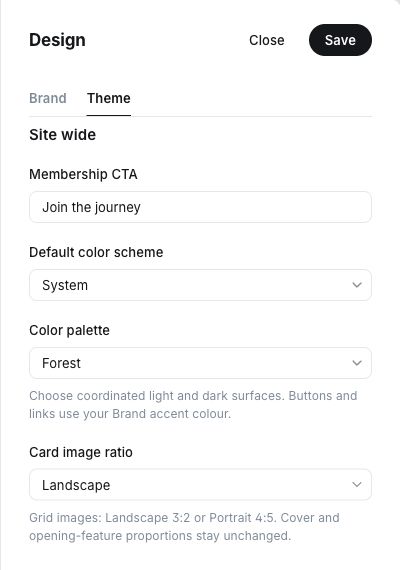
The label on guest membership buttons. It does not change Portal form copy. Signed-in visitors see their account link.
Editable text
Default: Join the journey
Choose the initial colour scheme. System follows the device; an explicit visitor choice takes precedence.
System · Light · Dark
Default: System
Coordinate paper, text, panel and divider colours in light/dark. Your Brand accent is configured separately.
Forest · Sand · Ocean · Clay
Default: Forest
Landscape uses 3:2 grid images; Portrait uses 4:5. Cover and opening-feature proportions are unchanged.
Landscape · Portrait
Default: Landscape
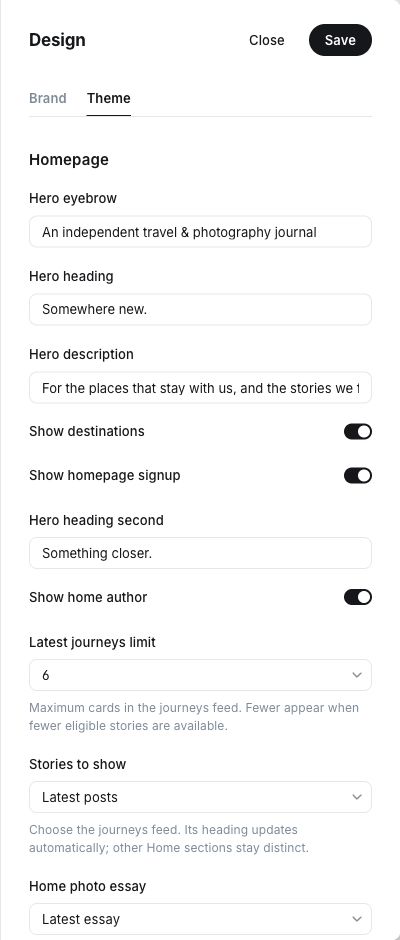
The small uppercase introduction above the homepage headline.
Editable text
Default: An independent travel & photography journal
The first line of the homepage headline.
Editable text
Default: Somewhere new.
The paragraph beside or below the homepage headline.
Editable text
Default: For the places that stay with us, and the stories we find along the way.
Show or hide the homepage destination section. The separate Destinations page remains available.
On / Off
Default: On
Show or hide the homepage newsletter invitation. Signup sections on other templates are independent and are hidden for signed-in members.
On / Off
Default: On
The italic second line. Leave empty for a single-line headline.
Editable text
Default: Something closer.
Show or hide the homepage author introduction. The author with the most published stories is selected automatically.
On / Off
Default: On
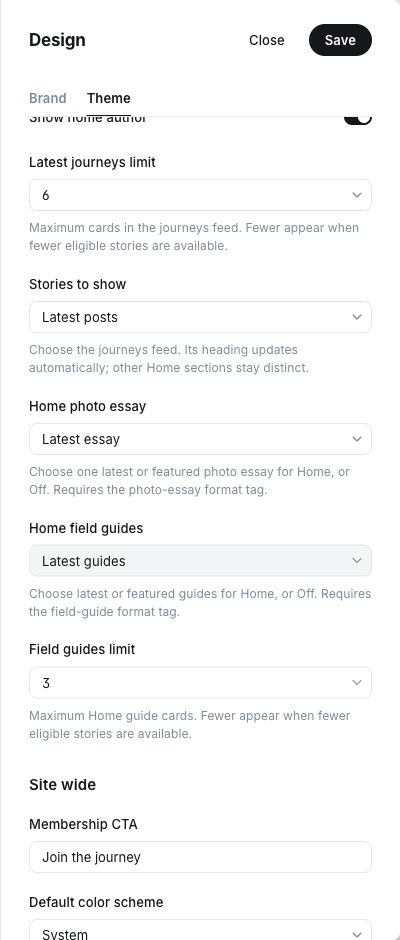
Maximum homepage journeys cards. Fewer cards appear if fewer stories qualify. This is separate from archive pagination.
3 · 6 · 9 · 12
Default: 6
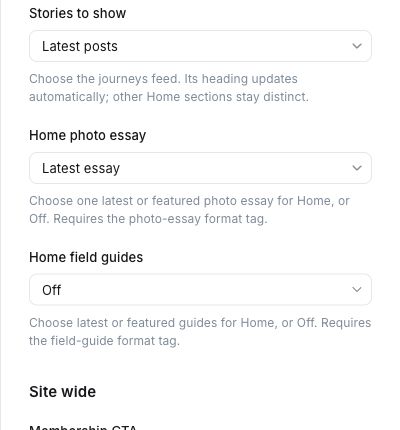
Select the homepage journeys feed. Its heading follows the source. Format reservations and the cover exclusion still apply.
Latest posts · Featured posts · Public posts · Members-only posts · Paid posts
Default: Latest posts
Show one latest or featured story with #photo-essay, or choose Off. There is no Limit because this is one editorial feature.
Latest essay · Featured essay · Off
Default: Latest essay
Show latest or featured stories with #field-guide, or choose Off. This affects Home only.
Latest guides · Featured guides · Off
Default: Latest guides
Maximum homepage guide cards. Visible only while Home field guides is enabled; the saved value is retained when hidden.
3 · 6 · 9 · 12
Default: 3
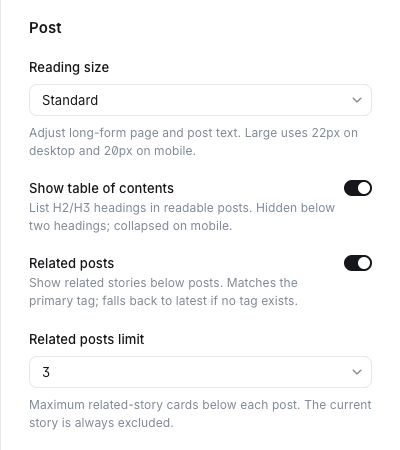
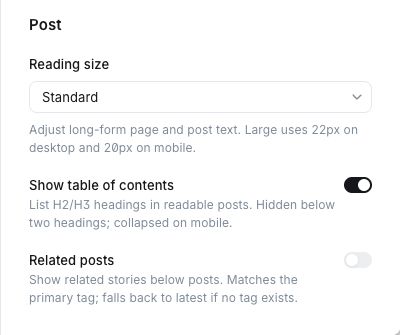
Standard: article text 20px desktop / 18px mobile. Large: 22px / 20px. Changes long-form content, not navigation or account forms.
Standard · Large
Default: Standard
Generate a contents list from at least two visible H2/H3 headings in a readable post. It starts collapsed on mobile.
On / Off
Default: On
Enable related stories below posts. Match the primary tag; fall back to latest only when the current post has no primary tag. No matches hides the section.
On / Off
Default: On
Maximum related cards, excluding the current story. Visible only while Related posts is enabled; fewer matches means fewer cards.
3 · 6 · 9 · 12
Default: 3
Turn Home field guides to Off or disable Related posts and Ghost hides that block's Limit control. The previous limit is retained. Re-enable the block to see the control again; there is no separate Related posts source setting.
THROUGH THE LENS
Upload good-quality originals sized for their intended display, and compress them sensibly before uploading. Keep important subjects away from the edges of grid images, which are cropped to your selected ratio. Ghost creates the theme's responsive image sizes automatically; you do not need custom image folders or server rules.
Provide useful alt text for meaningful images and use captions for credit or context. Use only photography you own or have permission to publish. Demo photographs are not bundled in the theme ZIP. The complete customer product supplies them in a separate optional import; keep the demo photo credits and licenses.
Add image and gallery cards from Ghost's editor for photography. Use headings, quotes, callouts, toggles, bookmarks, buttons and media cards to vary longer stories. Review externally embedded content separately: its availability and behavior depend on its provider.
In a readable article, select the cover or an unlinked image/gallery photograph to open the viewer. Use Previous/Next, Left/Right arrows or the on-screen controls. Close with Escape, the close button or the backdrop. Keyboard focus returns to the image and your reading position is retained. Linked images keep their own destination.
Enable Show table of contents and use at least two visible H2/H3 headings in the post body. The contents list is automatic and collapsed initially on mobile. It does not list headings in hidden content or expose a restricted body to guests.
Enable Related posts to show other stories with the same primary tag. If the current post has no primary tag, the theme selects latest stories instead. A tag without other matches hides the section. The current story is always excluded.
A LITTLE FURTHER, TOGETHER
Elsewhere uses native Ghost Search, Portal, membership and content access. Configure your publication's membership availability, free signup and Portal choices in Ghost Settings. Search opens from the header; guest membership buttons open Portal, and signed-in visitors can open their account.
| Access | Who can read | What to configure |
|---|---|---|
| Public | Everyone | Publish the story |
| Members only | Confirmed free or paid members | Membership and transactional email |
| Paid members only | Members with eligible paid access | Paid membership, Stripe and the intended tier/access rules |
Your host/server must be able to send Ghost's signup, sign-in and account emails. Configure SMTP at the hosting level and verify actual inbox delivery. This service is separate from the theme; the ZIP does not provide email credentials or a mail server. Bulk email newsletters use Ghost's separate delivery configuration.
Connect Stripe through Ghost when paid subscriptions are available for your business and required by your publication. The theme cannot create a Stripe account or enable payments on its own. Without paid subscriptions configured, paid posts remain restricted and the theme explains that subscriptions are not available yet.
Before launch, test signup, email confirmation, sign-out/sign-in and access restrictions. Test payments only in the payment provider's test mode until you deliberately go live.
READY FOR THE ROAD
Direct changes to theme files may be replaced by an update. Keep a separate record of custom code and reapply it only after checking compatibility. Theme uploads do not replace your posts, members or uploaded media.
WHEN SOMETHING LOOKS DIFFERENT
ATELIER THEMES
Email contact@atelierthemes.com with the theme version, Ghost version, browser/device, affected page and the steps to reproduce the issue. A screenshot often helps. Share a staging URL if the issue occurs there.
Single Website license · Support policy · Refund & cancellation policy · Screenshot image credits
Do not include passwords, API keys, payment details, private member data or sign-in links. Hosting, SMTP, newsletter delivery, Stripe and third-party embed issues may require the relevant service provider's help.
YOUR FINAL CHECK
Comments checklist.
Comments use Ghost's original helper and hosted interface. There is no theme-specific Comments bundle, code injection or runtime patch to install. Enable Comments in Ghost Settings for all members or paid members, according to your publication's policy.
The app's embedded browser can produce a MutationObserver error with native Ghost Comments. Try the same site in a standard Chrome, Firefox or Safari window before changing your theme. Do not replace the native bundle as part of installation. This guide leaves the final discussion checks to the site owner.
If a confirmed member still cannot comment, review the site's Comments policy and the post's access. Paid-only discussion requires the appropriate paid access; a free signup does not grant it.